Find your clipboard history
Search text, links, images and supported rich formats. Keep repeated replies and useful links pinned above the rest.
 Clipora
Your copied text, links and images, ready for the next task. Open quick access with Ctrl + Alt + V, find a clip and paste into your active field.
Free · Windows x64 · No account needed for local history
Select an example to insert it. This demo never reads your clipboard.
Search text, links, images and supported rich formats. Keep repeated replies and useful links pinned above the rest.
A customizable global shortcut opens quick access near your current field. Select a clip to paste, or copy it for manual insertion.
Encrypted local history by default. Pause recording, exclude applications and export a password-encrypted backup.
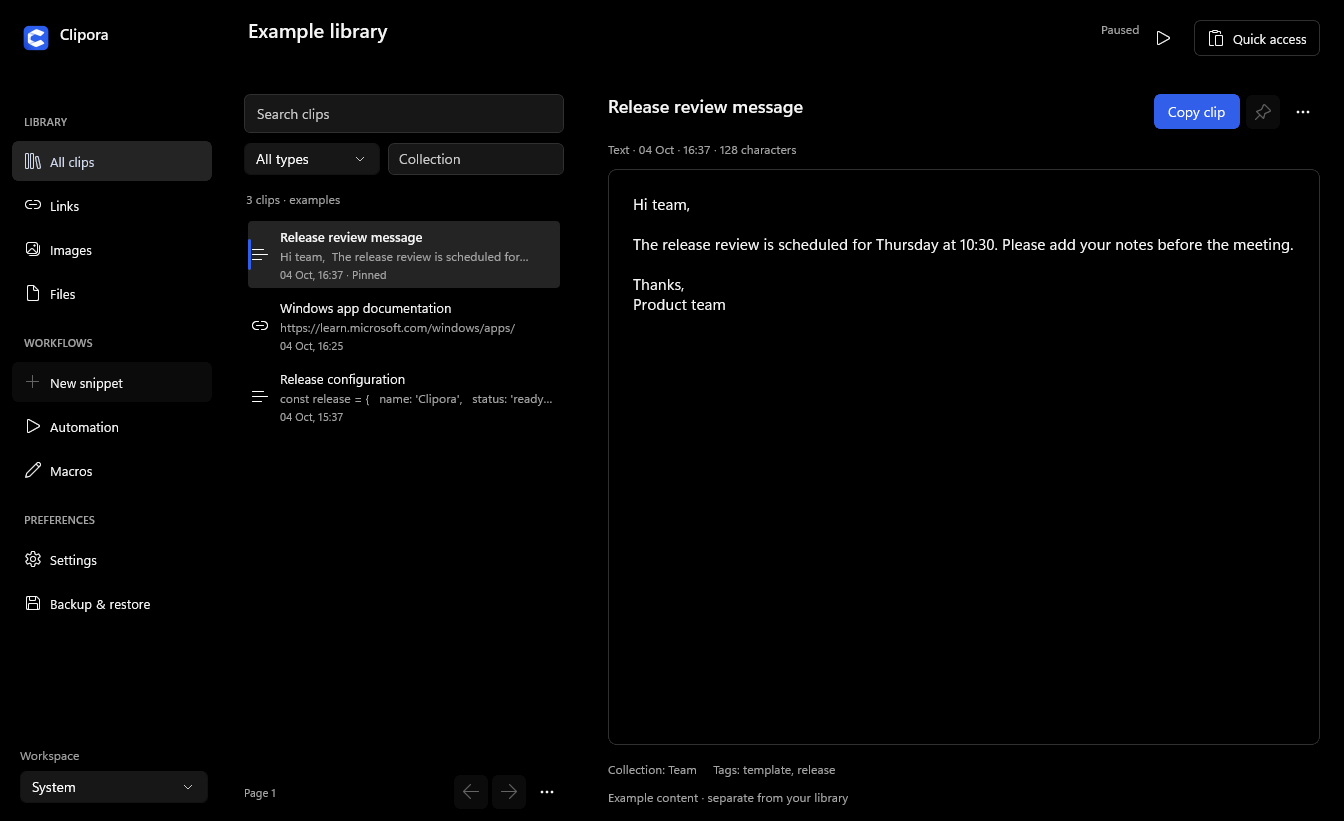
Actual app screenshot with synthetic test content.
Preview images before pasting. Pin, edit, delete and reorder clips from quick actions. Resize the picker, choose compact rows and customize the accent color.
Choose light, black dark or system appearance. Use snippets, transformations and automation when your workflow needs more.
Read the quick-start guide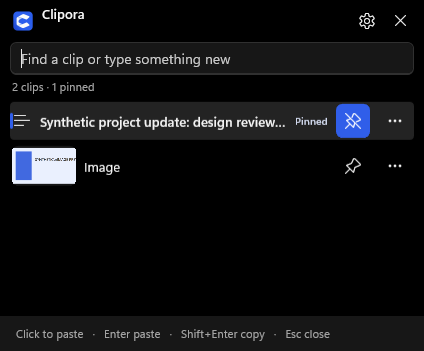
Quick access screenshot; the interactive example above is an illustration.
Local history needs no account. Sync is optional and disabled initially; you can configure an encrypted folder or your private server. The app provides no AI uploads or app analytics. See the privacy policy.
Closing the workspace leaves Clipora in the tray. Pause stops recording. Quit Clipora exits. Start with Windows is optional in Settings.
Windows restricts input into elevated applications. Copy the clip and press Ctrl+V manually. See support for help.
Export a password-encrypted library backup and merge it into the other installation. Back up before Windows resets or uninstalls the Store app. File clips contain references rather than file contents.
All feedback is welcome. No reward or positive rating required.